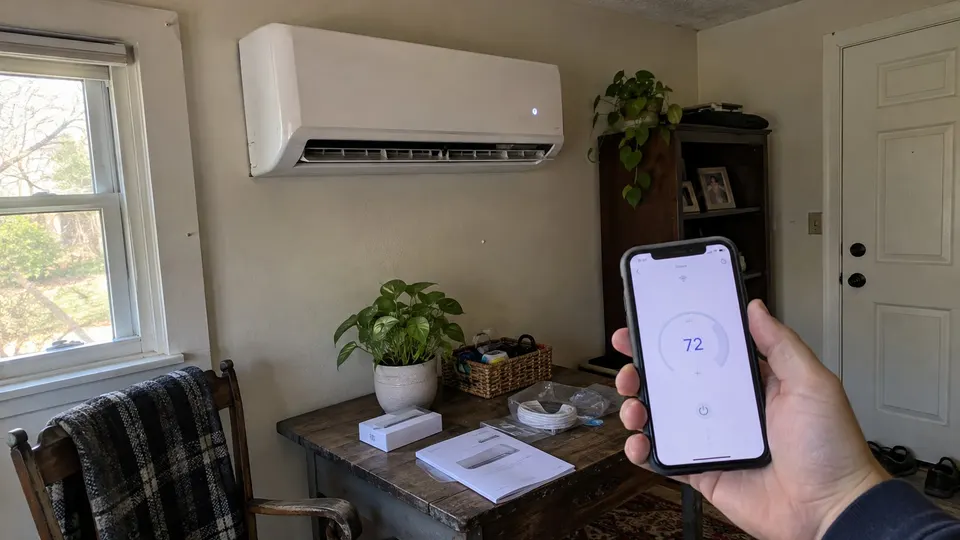
Short answer: Senville WiFi setup has two separate kit paths. The included Alexa USB kit pairs with the Amazon Alexa app, not Senville or NetHome Plus. The separately sold OSK102 Smart WiFi Kit uses the Senville/NetHome Plus route. Both need a compatible unit and 2.4 GHz WiFi. Identify the kit first; switching apps cannot change its compatibility.
Step 1: Identify the kit, not just the air conditioner
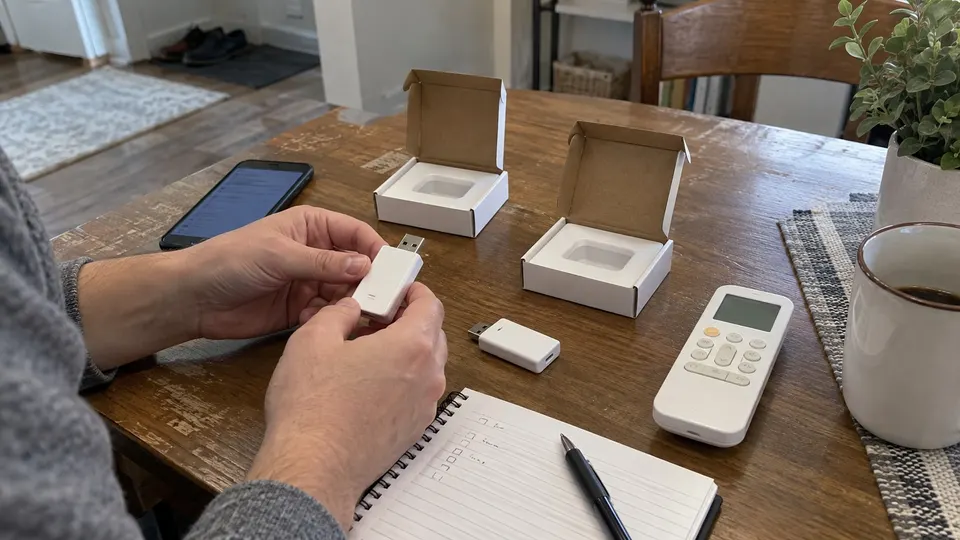
Read the kit label and supplied instructions. Senville's current support page says wall-mounted units made from 2019 onward include its Alexa USB kit, but check the actual kit supplied with your equipment, especially if bought used or changed later.
| Kit | App path | Important restriction |
|---|---|---|
| Included Alexa USB WiFi kit | Amazon Alexa app | Cannot pair with Senville/NetHome Plus; no Echo device required |
| Separately sold OSK102 Smart WiFi Kit | Senville app, also called NetHome Plus in support instructions | Do not follow the Alexa-only USB kit's add-device route |
| Unidentified kit or aftermarket controller | Confirm with Senville | USB shape alone does not establish compatibility |
Ceiling-cassette, concealed-duct and floor/ceiling units are another hardware case. Senville says each needs one SENV-SP23 adaptor plus one WiFi kit, with the adaptor installed by an HVAC technician because it connects to the control board. Do not open that board compartment to attempt a wall-unit USB procedure.
Prepare the phone and network
Use the home 2.4 GHz WiFi network, not 5 GHz. The current OSK102 guide lists WPA/WPA2. Keep the correct password private, turn phone WiFi on, and follow the app's Bluetooth and permission prompts. Senville's current setup guide calls for WiFi and Bluetooth to be on.
Use the official app-store route specified by the kit guide. The support pages call the OSK102 app both Senville and NetHome Plus, so match the kit's current instructions rather than downloading any app with a similar name. Older minimum phone-version numbers in a legacy guide are not a promise of compatibility with today's app; check the current store listing on your phone.
Install or check the module only with the equipment safely off and as the model's manual directs. Do not reach into a powered unit, force a connector or remove an electrical cover. If the slot is not safely accessible, ask the installer. Keep the kit's QR code privately; do not post it in a public troubleshooting thread.
Path A: Included Alexa-only kit
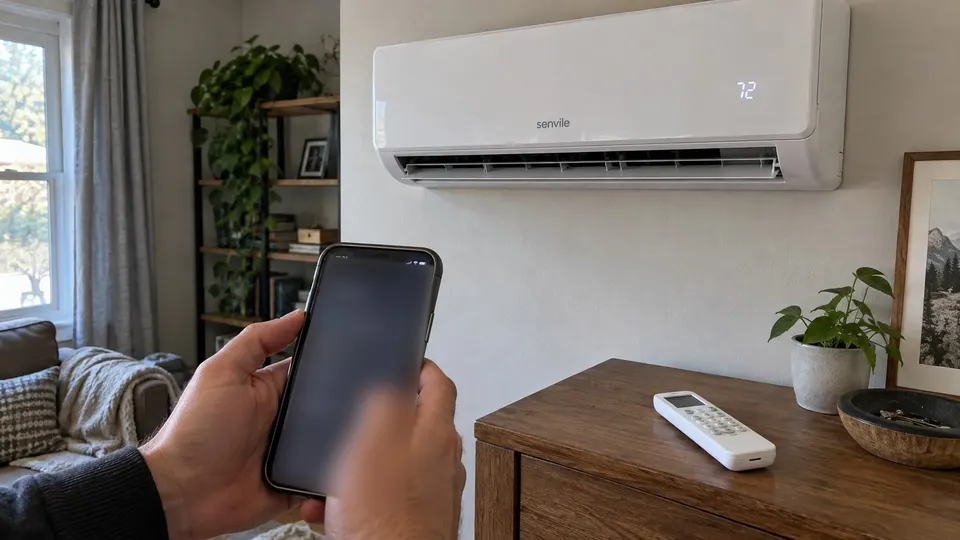
Use Senville's Alexa-kit instructions:
- Install Amazon Alexa and sign in or create an account.
- With the unit safely off, make sure the compatible kit is fully seated in the model's designated slot. LETO and AURA slot locations differ.
- Keep the kit's QR code available.
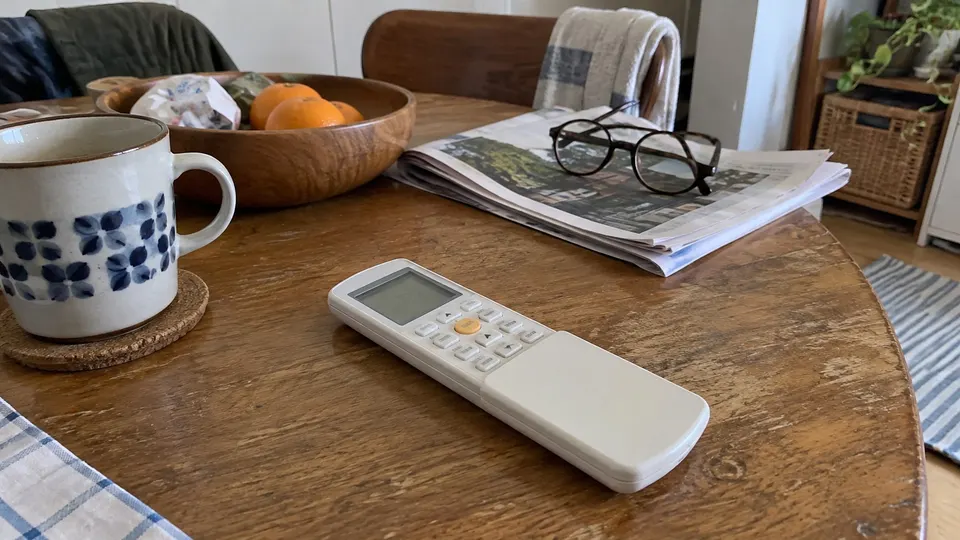
- Turn the unit on, then press the remote's LED button seven times until AP appears.
- In Alexa, choose Devices > + > Add Device > Air Conditioner > Senville, then follow the prompts.
- Check the added device. It may be named Air Conditioner or Mini Split Heat Pump rather than Senville.
You do not need an Echo speaker for this setup. This path does not register the included kit in NetHome Plus. If that app cannot find it, the fix is not another reset in the wrong app.
Path B: OSK102 Smart WiFi Kit
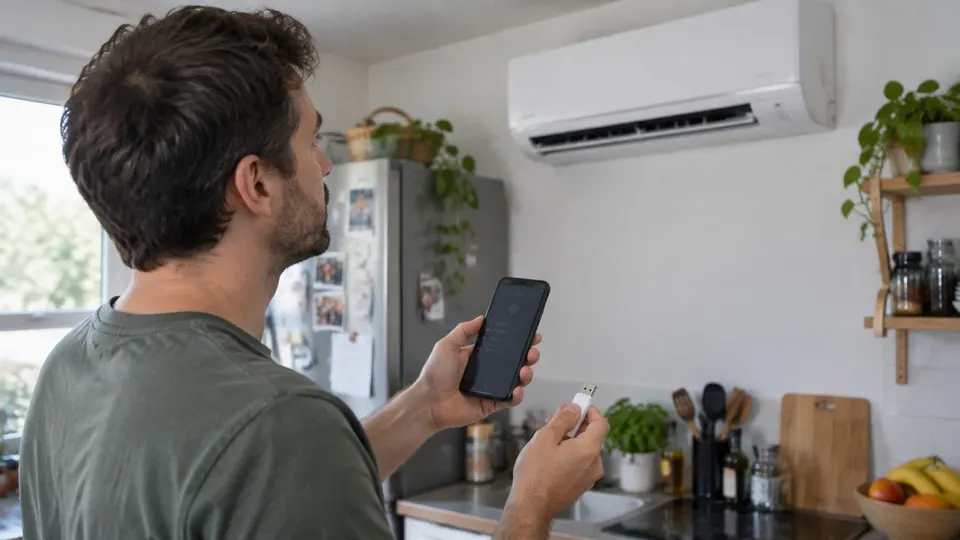
For a confirmed compatible OSK102 kit:
- With the equipment safely off, ensure the kit is fully seated and keep its QR code.
- Install the Senville app using the route in the kit guide. Register and complete the email confirmation.
- Turn the unit on. Within ten seconds, press LED DISPLAY or DO NOT DISTURB, as labelled on the supported remote, seven times. The unit should show AP.
- Complete pairing within the guide's eight-minute window.
- Choose + Add Device, select the supported unit type and follow the QR-code or manual-network setup prompts.
- Enter the home network password only in the intended app and finish setup.
- Check the device list. Refresh if it initially appears offline; the guide notes that it can take a few minutes.
If the window expires, follow the kit's documented restart procedure rather than copying another brand's WiFi reset. On remotes with a different layout, use the exact model's instructions. The Senville remote guide helps identify CR322 and CR333, but kit compatibility still needs its own check.
When pairing will not finish
Start with the kit/app match. Then check 2.4 GHz, password, signal and app updates. Combined-band routers can need their documented method for onboarding a 2.4 GHz device. Do not remove encryption or share the password publicly.
Senville's guide says an unseated kit can cause beeps or failure to show AP. If reseating is needed, safely switch off and follow the module instructions; do not pull it while powered. If the kit type is uncertain, stop resetting and send support photographs of the indoor label and kit, plus the app error with private details hidden.
Confirm a command and keep the physical remote
Send one supported command and verify the air conditioner responds, then restore the desired setting. Functions such as ECO, Swing and Turbo depend on the model and may not appear in the app. Registration does not add unsupported functions.
Keep the kit manual and pairing identity with your equipment records. After a router or password change, use the correct kit's reconnection procedure. An equipment fault or weak cooling is separate from WiFi; use the not-cooling checks when that is the actual symptom.
Related reading
- To learn about the brand, read who makes Senville.
Sources
- Senville current kit/app compatibility and OSK102 setup, including SENV-SP23 adaptor limits.
- Senville Alexa-only kit setup, app route and AP pairing.
- Senville OSK102 setup guide, Senville/NetHome Plus naming, timing and network requirements.