Short answer: MRCOOL WiFi setup depends on the installed smart controller, not just the air conditioner's brand or generation. For the Smart Controller covered here, use MRCOOL SmartHVAC, join the controller's temporary SmartHVAC_BI03 network when prompted, then connect it to your home 2.4 GHz WiFi. Do not use a window-unit NetHome Plus procedure for this mini-split controller.
Identify the module before choosing an app
The setup below follows MRCOOL's Smart Controller manual for the module whose temporary network begins SmartHVAC_BI03_. Match the module and its included instructions before following it. The fifth-generation DIY quick-start guide points owners to the instructions supplied with the Smart Controller Module; it does not make every MRCOOL controller identical.
MRCOOL's support page says most mini-split units use Cielo's SmartHVAC route, while window units use NetHome Plus. That window-unit note is not permission to pair a BI03 mini-split module with NetHome Plus. A separate smart thermostat or mini-stat can have another setup flow.
| What you have | Starting point |
|---|---|
| Compatible MRCOOL Smart Controller with SmartHVAC_BI03 setup network | This manual's SmartHVAC procedure |
| Different controller, thermostat or mini-stat | Its own module instructions and compatibility list |
| MRCOOL window unit | Model-specific window-unit app instructions, not this guide |
| No confirmed WiFi controller | Confirm compatible hardware with MRCOOL before buying or pairing |
The official iPhone listing identifies MRCOOL SmartHVAC by Cielo WiGle Inc. App screens change with versions. The manual shows an earlier interface; use the current app's prompts for the same compatible controller rather than expecting every screenshot to match. Do not sideload an app or give a router password to an unrelated setup site.
Step 1: Prepare the network and controller
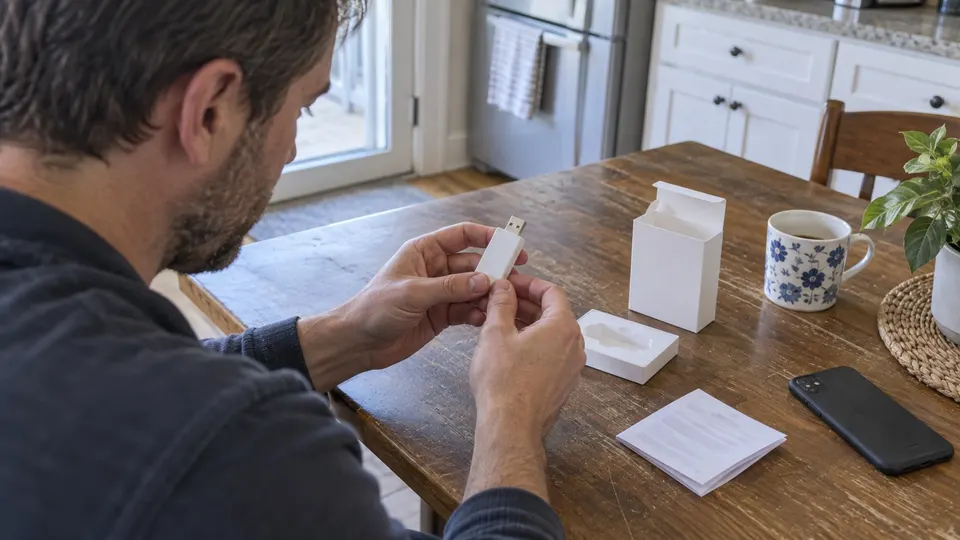
Use a working home 2.4 GHz network and confirm your phone has internet access. Have the network name and password ready privately. The controller manual excludes captive-portal networks and says client/IP isolation must not block its connection. If you use a managed or guest network, ask the network owner rather than disabling security blindly.
The compatible module must be properly installed. Follow its power-isolation and docking instructions; do not reach into a powered unit or open an electrical compartment. If the dock is inaccessible without electrical disassembly, have the installer handle it. Do not insert an unverified USB accessory because the connector appears to fit.
Install the current MRCOOL SmartHVAC app from the phone's official store, then sign in or create the account in the app. Keep credentials out of shared photographs and support screenshots.
Step 2: Add the BI03 controller
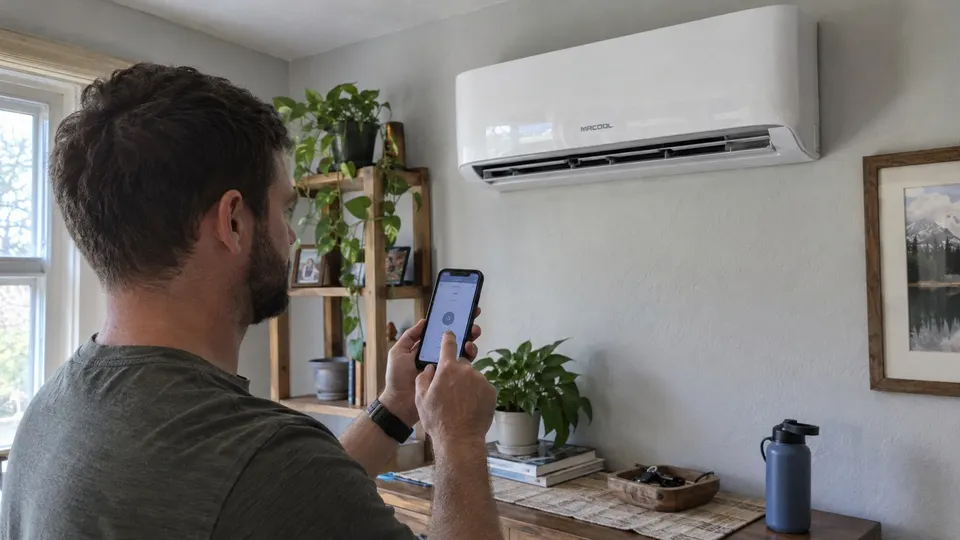
For the controller covered by the manual:
- Open SmartHVAC and use + to add a device.
- When instructed, open the phone's WiFi settings and connect to the controller network beginning SmartHVAC_BI03_.
- Return to SmartHVAC. On Android, the manual's flow uses a WiFi Settings button to reach the same temporary-network step.
- Select your home network in the app and enter its password there.
- Complete the naming and equipment-type prompts.
- Refresh the device list and check its connection indicator.
The temporary controller network is for onboarding, not the home network you want it to use permanently. Your phone may warn that the temporary network has no internet; follow the app's setup prompt and return to the app. Do not switch to a random nearby network with a similar name.
Grant only the permissions required by the current pairing flow. The older manual notes an Android location permission requirement during registration; present-day operating systems may label nearby-device permissions differently. The app's current instructions control that screen.
If the controller network does not appear
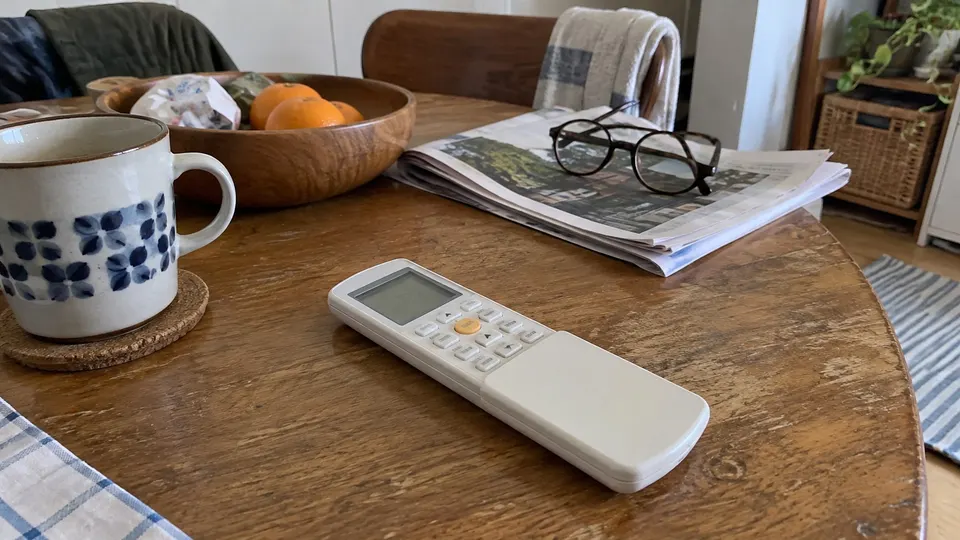
First confirm the exact module and correct app. The BI03 manual describes pressing the mini-split remote's LED button seven times within one minute as one way to make its setup network available. Use that only for a controller whose manual gives this procedure. Other modules may use different timing or reset controls.
Do not transplant Senville's seven-press timing or Gree's WiFi button sequence. Do not repeatedly pull a module from a powered unit. If it needs reseating, follow its isolation instructions or ask the installer.
Next check the 2.4 GHz network, internet access and signal near the indoor unit. Update the app, restart the phone, and follow the model's safe restart instructions if needed. MRCOOL support recommends checking connectivity and updating the app before resetting WiFi. Avoid repeated whole-system power cycling.
Confirm control, not just registration
Use a basic supported command, such as changing the set temperature, and confirm the equipment responds. Then return to the intended comfort setting. A device name in the list is not proof every advanced function is supported. Keep the physical remote available; WiFi pairing is separate from normal remote operation.
If the unit is offline after a router or password change, update its network connection with the correct controller procedure. If the air conditioner itself has an alarm, use the MRCOOL code guide rather than treating it as an app fault.
Save the model, controller identity, app name and setup guide for future support. Do not include passwords or full account details in a public troubleshooting post.
Sources
- MRCOOL Smart Controller manual, BI03 onboarding, controller installation, network requirements and 2.4 GHz radio.
- MRCOOL WiFi/app troubleshooting, mini-split versus window-unit app note.
- Official MRCOOL SmartHVAC iPhone listing, app identity and developer; interface may change by version.
- MRCOOL fifth-generation DIY quick-start guide, direction to the included module's setup instructions.