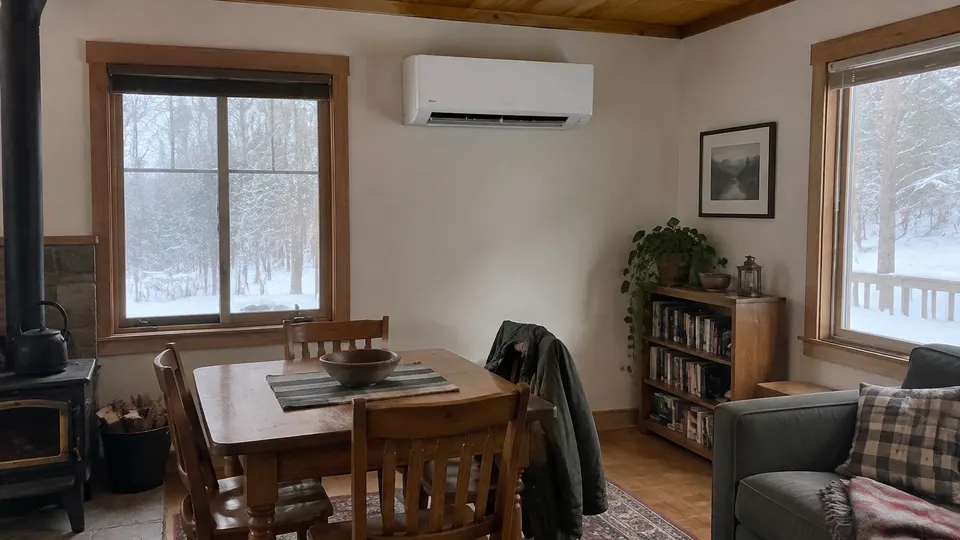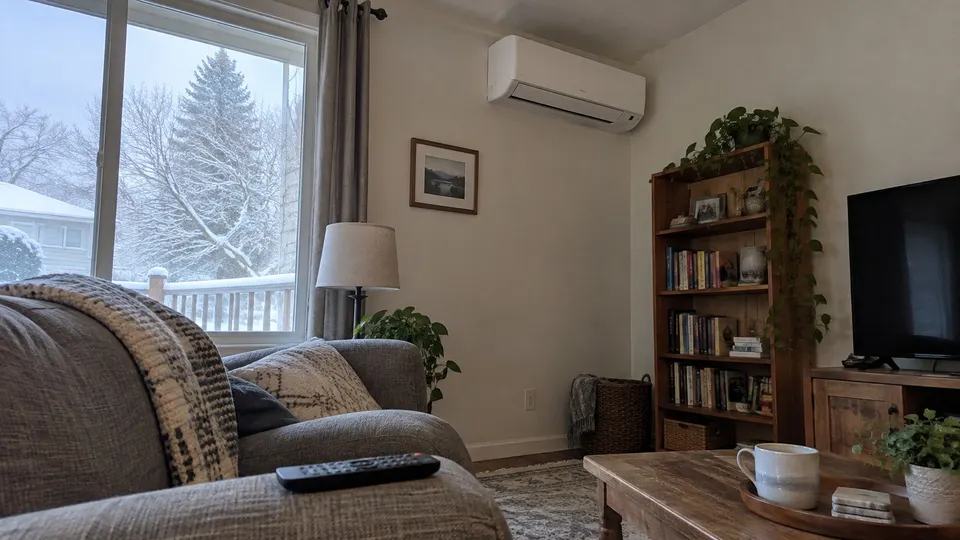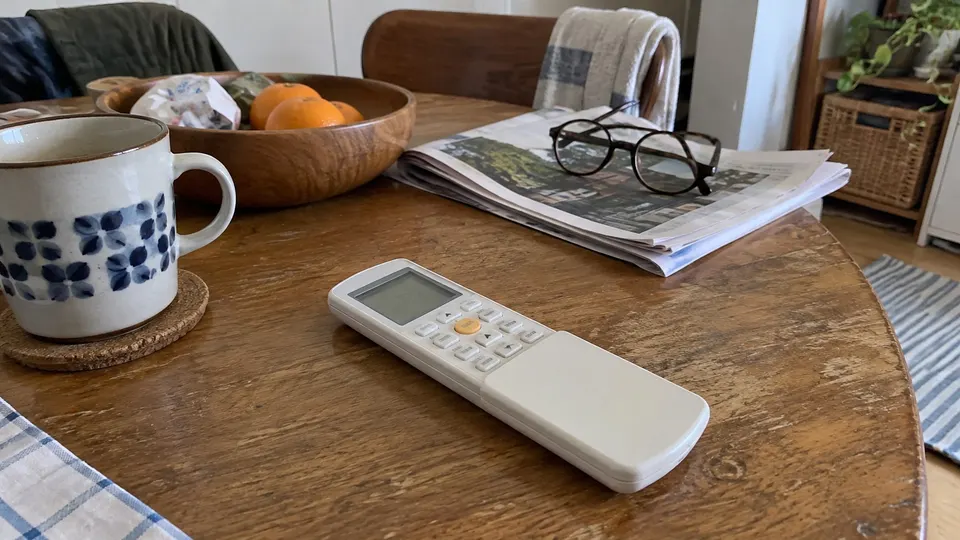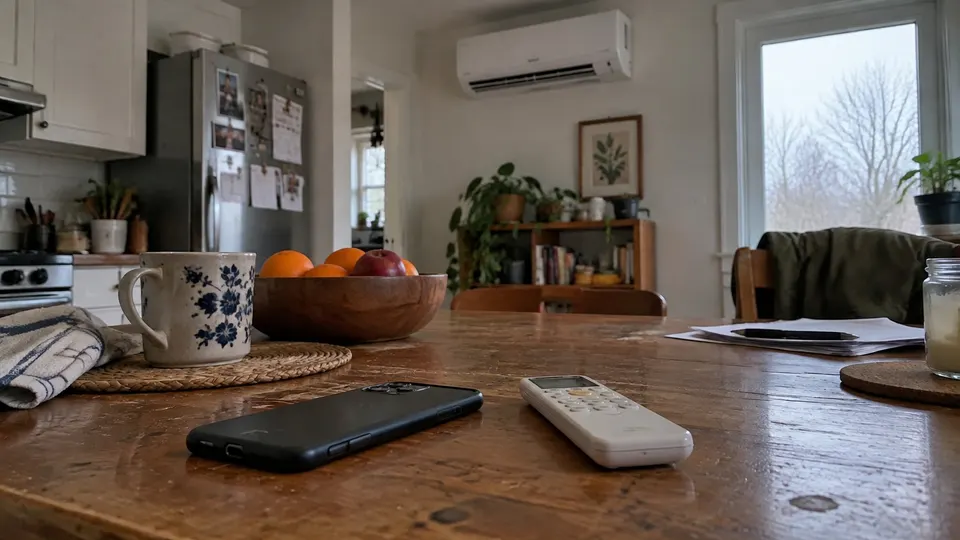
Short answer: Use GREE+ with a compatible Gree WiFi receiver and a 2.4 GHz home network. On the listed Vireo Gen3 wall units, the receiver is built in: enable pairing with the remote's WiFi button, then add the unit in GREE+. Other Gree receivers and remotes have different enable/reset instructions, so match the model before copying a button combination.
Choose the model-specific route
Gree's bulletin PB-CON-03092022 covers Vireo Gen3 high-wall air handlers 3VIR09HP115V1AH, 3VIR12HP115V1AH, 3VIR09HP230V1AH, 3VIR12HP230V1AH, 3VIR18HP230V1AH and 3VIR24HP230V1AH. It says these models have an onboard receiver and need no additional WiFi kit.
That statement does not cover every Gree product. An older universal receiver, another controller or a different model may need its own hardware and procedure. Read the complete model label before ordering a kit.
| Equipment/manual | Procedure boundary |
|---|---|
| Listed Vireo Gen3 high-wall models | Use the specific bulletin steps below |
| Compatible system following the older universal WiFi manual | Use that manual's enable procedure for its remote type |
| Another model, cassette or wired control | Find its compatible receiver and exact instructions first |
Gree's current homeowner pages still direct users to GREE+. Interface screens can differ from the older manual. Install it through the official app store route linked by Gree, not a similarly named app or an unofficial download.
Step 1: Prepare the app and network
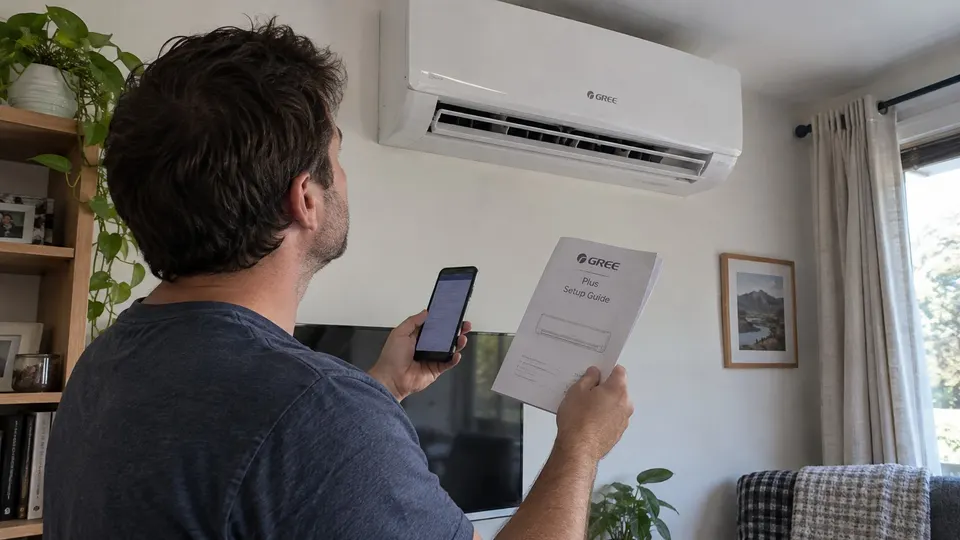
Keep the phone near the indoor unit and use your home 2.4 GHz network. The Vireo Gen3 bulletin says the unit is not compatible with 5 GHz. Have the correct network name and password ready privately.
Install GREE+, sign in or create an account, and select the appropriate region when prompted. Confirm the air conditioner works with its physical remote before diagnosing an app issue. If the equipment shows a fault, use the Gree code guide separately.
Step 2: Pair a listed Vireo Gen3 unit
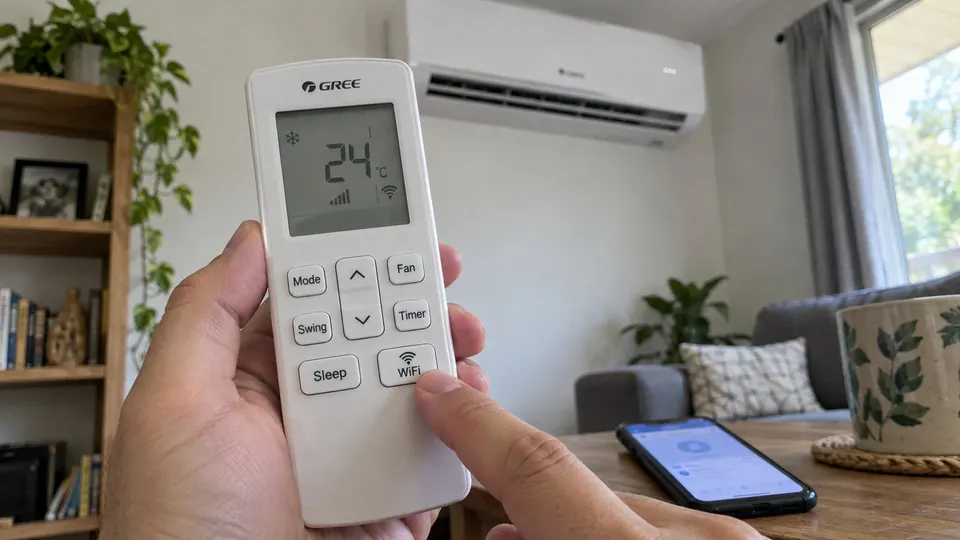
Follow the Vireo Gen3 bulletin:
- Hold the remote's WiFi button until the WiFi icon appears and the unit beeps.
- Pairing remains available for two minutes in this procedure.
- Tap + at the top right of the GREE+ home screen.
- Let the app find the active unit. If it does not, choose the AC icon and follow the manual-add prompts.
- Select the home network and enter its password when prompted.
- Complete the prompts, then check that the unit is available for control.
If the two-minute window expires, the bulletin instructs you to switch the unit off with its remote, then hold MODE plus WiFi until it beeps to reset the module. Restart pairing. Use that reset only for the listed models and matching controls, not as a generic Gree combination.
Why older instructions can look different
Gree's older universal WiFi manual describes enabling its interface with the unit on, holding WiFi for ten seconds until the second beep and icon. For a remote without a WiFi button, it describes holding MODE plus TURBO for ten seconds.
Those are a separate manual's instructions. Do not combine its ten-second method with the Vireo Gen3 bulletin's reset, or assume MODE plus TURBO is right for a Gen3 remote that has WiFi. If your model and manual are unclear, ask Gree or the installer to identify the receiver before resetting it.
If pairing fails
Check model compatibility and the correct app first. Then check the network band, password, internet access and signal near the unit. If the router combines 2.4 and 5 GHz under one name, use its documented method to connect the device to 2.4 GHz. Do not disable the router's security to make an unsupported setup work.
Keep the phone with the app during pairing, follow its current permission prompts and stay within the model's pairing window. Repeating random button combinations can turn off the WiFi interface or reset settings you did not intend to change.
If you still cannot connect, collect the complete indoor model, controller photograph, app version and the error screen. Hide passwords and personal account details before sending screenshots to support.
Check one command and keep the remote
Try a supported temperature or power command and confirm receipt, then restore the desired setting. Optional functions depend on equipment: an app icon does not add a feature that the indoor unit lacks. WiFi does not replace the Gree remote guide when the network is unavailable.
Keep the correct manual with your equipment records, update the app through the store and revisit its network setup when you change the router or password. Leave internal receiver installation and electrical work to qualified service personnel.
Sources
- Gree Vireo Gen3 onboard-WiFi bulletin, affected models, two-minute pairing and MODE/WiFi reset.
- GREE+ universal WiFi manual, separate older interface-enable procedure.
- Gree current WiFi-app page, official GREE+ route.